The Billing page shows your current subscription status, payment methods, and invoice history. Whistle Works uses a pay-per-game pricing model, so you are charged based on the number of games you manage.
To get here, go to Settings > Billing in the sidebar.
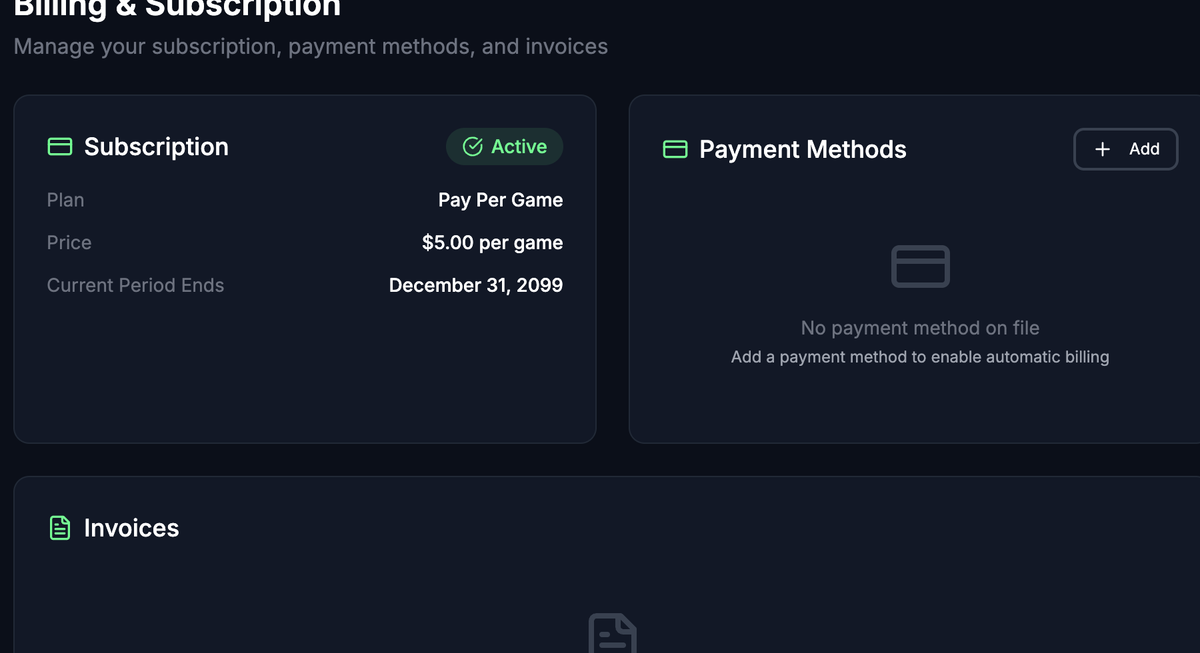
Subscription Status
The Subscription card at the top of the page shows your current plan details:
- Plan — Always "Pay Per Game" -- you are charged per game managed.
- Price — Your per-game rate.
- Status — Your current subscription state (see table below).
- Trial Benefit — If you are on a trial, this shows your remaining free games or trial days.
- Trial Ends — For time-based trials, the date your trial expires.
- Current Period Ends — For active subscriptions, when the current billing cycle ends.
Subscription statuses
- Trial — You are in a free trial period. You may have a set number of free games or a time-limited trial.
- Active — Your subscription is current and in good standing.
- Past Due — A payment failed. Update your payment method to avoid service interruption.
- Canceled — Your subscription has been canceled.
- Unpaid — Payment is overdue.
- Incomplete — Your subscription setup has not been completed.
Trial Information
If your organization is on a trial, the Subscription card shows additional details depending on your trial type:
- Game-based trial -- Displays the number of free games remaining (for example, "10 free games").
- Time-based trial -- Displays the number of days remaining and the trial end date. When fewer than 3 days remain, the countdown highlights in amber as a reminder.
Payment Methods
The Payment Methods section shows all cards on file.
Add a payment method
- Click the Add button in the Payment Methods section.
- Enter your card details in the secure payment form (powered by Stripe).
- Click Save Card.
The new card is automatically set as your default payment method.
Set a default payment method
If you have multiple cards on file:
- Find the card you want to use as default.
- Click the checkmark button next to it.
The default card is used for all future charges. It displays a "Default" badge.
Remove a payment method
- Click the trash icon next to the card you want to remove.
You cannot remove your default payment method. To remove it, first set a different card as default.
Invoices
The Invoices table shows your billing history. Each invoice displays:
- Invoice — The invoice number and description.
- Date — When the invoice was created.
- Amount — The total charged.
- Status — Paid, Open, Draft, Void, or Uncollectible.
- Actions — Links to view the invoice online or download a PDF.
Invoices appear after your first billing cycle. If the table is empty, no invoices have been generated yet.
View or download an invoice
- Find the invoice in the table.
- Click the external link icon to view it in your browser.
- Click the download icon to save a PDF copy.
Billing Portal
For advanced billing management -- such as updating your billing address, viewing detailed payment history, or managing your subscription -- click the Open Billing Portal button. This takes you to a secure Stripe-hosted page where you can manage all billing details.
What's Next?
- Organization Settings -- Configure your organization's core details.
- Managing Team Members -- Invite and manage your team.
- Setting Up Leagues -- Get your leagues configured.