The dashboard is your home base in Whistle Works. It gives you a snapshot of what is happening across your organization in the next seven days. What you see depends on your role -- administrators and officials each get a view tailored to their responsibilities.
Welcome banner
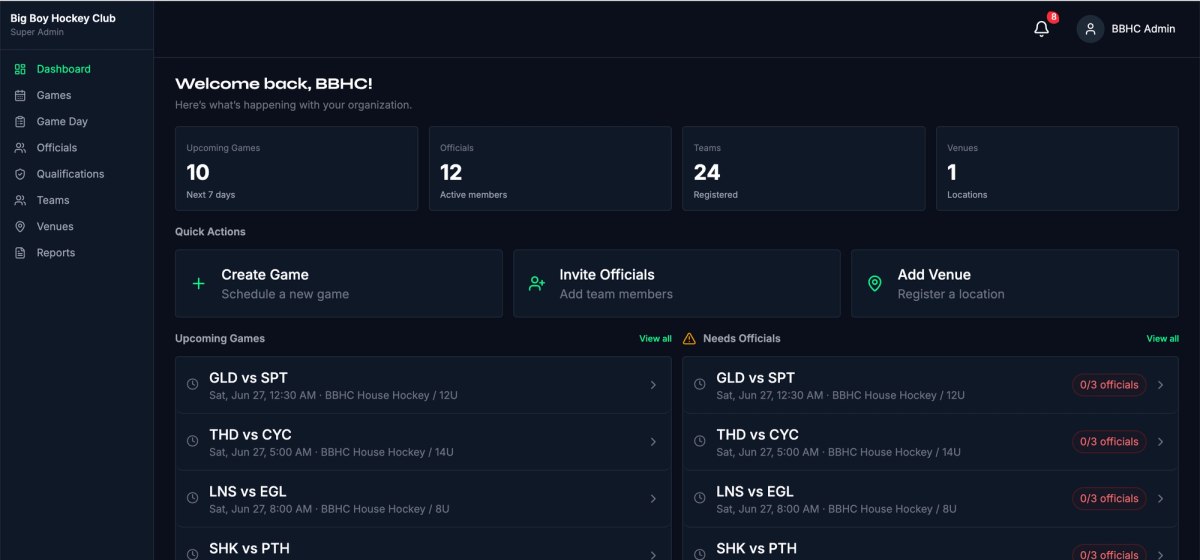
At the top of the dashboard, you will see a personalized greeting with your first name and a brief summary line: "Here's what's happening with your organization."
Quick stats
Four stat cards appear in a row across the top of the dashboard:
- Upcoming Games — Number of games scheduled in the next 7 days
- Officials — Total active officials in your organization
- Teams — Number of registered teams
- Venues — Number of venue locations
These numbers update automatically as you add games, officials, teams, and venues.

Quick actions
Below the stats, you will find shortcut buttons for common tasks. The actions shown depend on your role.
Administrator actions
- Create Game -- Opens the game scheduling form so you can set up a new game right from the dashboard.
- Invite Officials -- Opens the invitation form to add new officials to your organization.
- Add Venue -- Takes you to the venue creation page to register a new location.
Official actions
- My Assignments -- Takes you to your upcoming game assignments.
- Available Games -- Shows games that are open for you to pick up.

Upcoming games
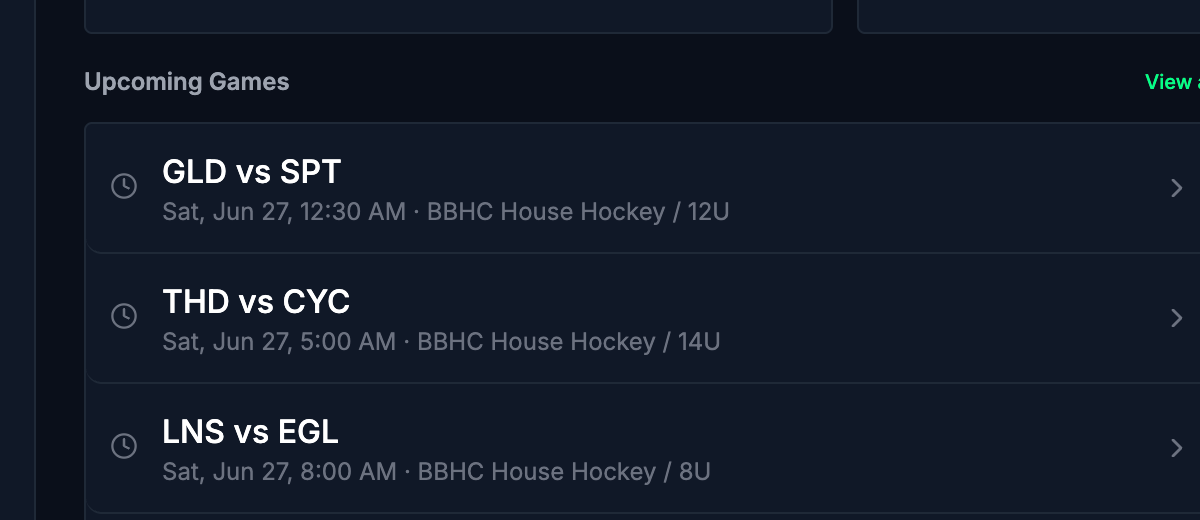
The Upcoming Games panel lists up to five games scheduled in the next seven days. Each game entry shows:
- The home and away teams (or "TBD" if teams have not been assigned)
- The date and time (displayed as "Today," "Tomorrow," or a weekday with date)
- The league and division
- A "Draft" label if the game has not been published yet
Select any game to open its full detail page.
If no games are scheduled in the next seven days, you will see a message: "No upcoming games." Select View all in the upper right to go to the full Games page.
Needs officials (administrators only)
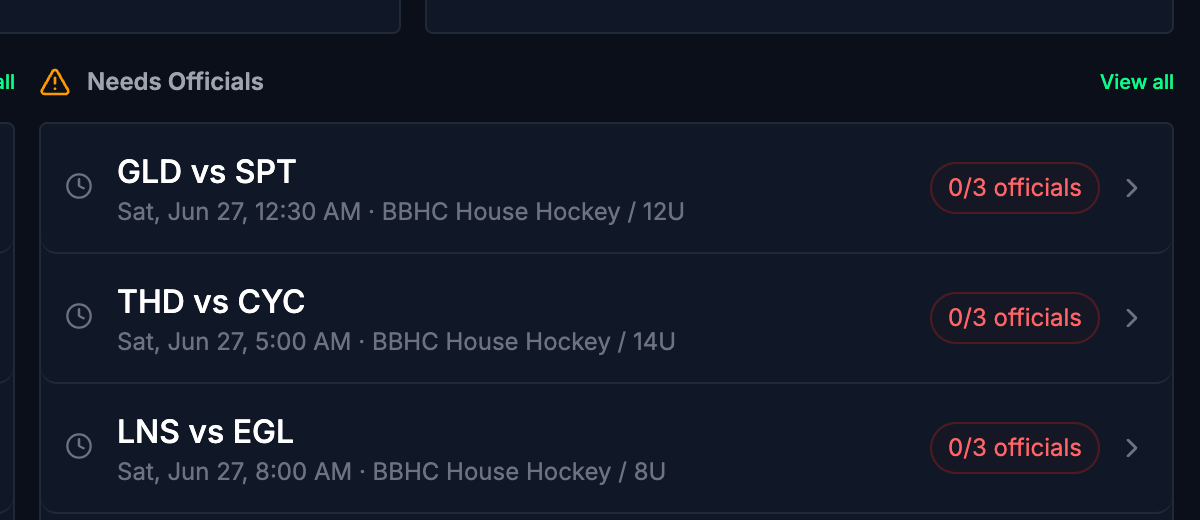
Administrators see a second panel called Needs Officials alongside the upcoming games. This panel highlights games that are understaffed -- meaning they do not yet have enough officials assigned.
Each game in this list shows:
- The same team, date, and venue details as the upcoming games panel
- A staffing badge (for example, "1/3 officials") color-coded by urgency:
- Red -- The game has fewer officials than the minimum required
- Amber -- The game has met the minimum but has not reached the full complement
Select any game to open it and manage assignments. Select View all to see all understaffed games.
Recent activity (officials only)
If you are logged in as an official (without admin privileges), you will see a Recent Activity panel in place of the Needs Officials panel. This area shows your recent game and assignment activity.
What's next?
- Navigating Whistle Works -- Learn how to use the sidebar, switch organizations, and find key features.
- Setting Up Your Organization -- Revisit the setup steps if you need to adjust your organization details.