The Security page lets you change your Whistle Works password. How this page works depends on whether you signed up with an email and password or through a third-party provider like Google or Apple.
Changing your password
If you created your account with an email and password:
- Navigate to the Security settings page.
- Enter your Current Password.
- Enter your New Password. It must be at least 8 characters long.
- Enter your new password again in the Confirm New Password field.
- Select Change Password.
A green "Password changed successfully!" message confirms the update. All three fields are cleared automatically.
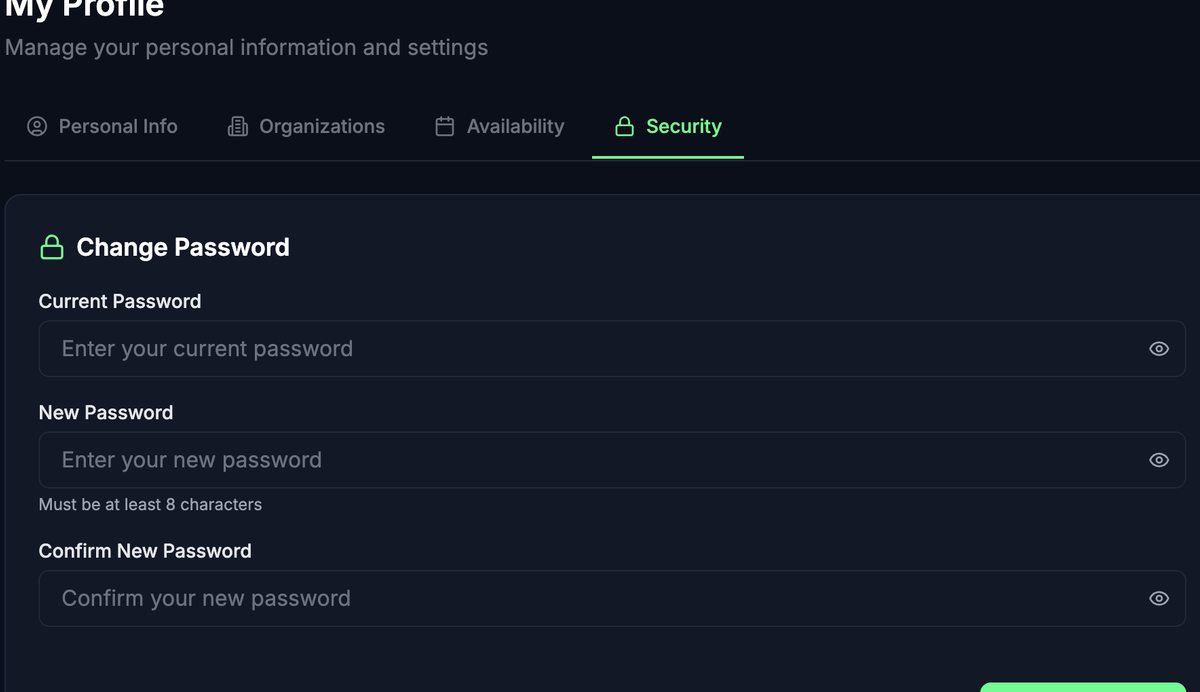
tipEach password field has a show/hide toggle (eye icon) on the right side. Use it to double-check what you have typed before submitting.
Troubleshooting
- "New passwords do not match" — Make sure the New Password and Confirm New Password fields contain the exact same text.
- "New password must be at least 8 characters" — Choose a longer password.
- "Failed to change password" — Your current password may be incorrect. Re-enter it carefully.
Accounts linked to Google or Apple
If you signed in with Google or Apple, the Security page displays a message explaining that your account security is managed by that provider. To change your password or security settings, visit your Google or Apple account settings instead.
What's next?
- Your Personal Information -- Update your name, phone, and profile picture.
- Your Organizations -- View and manage your organization memberships.