Positions represent the roles officials fill during a game -- for example, Referee, Linesman, or Scorer. Each position can have qualification levels that indicate an official's experience or certification tier.
Positions are used throughout Whistle Works: in league requirements, game assignments, and official profiles. Setting them up is one of the first things you should do when configuring your organization.
To get here, go to Settings > Positions in the sidebar.
Create a Position
- Click the Add Position button in the top right corner.
- Enter a Position Name (required). For example, "Referee," "Linesman," or "Scorer."
- Optionally enter a Short Name (up to 10 characters, automatically converted to uppercase). For example, "REF," "LINE," or "SCR." Short names are used in compact displays like game cards and assignment lists.
- Optionally add a Description of the position's responsibilities.
- Add Qualification Levels (see below).
- Click Create Position.
Qualification Levels
Qualification levels represent tiers of experience or certification for a position. For example, a Referee position might have Level 1 (Entry), Level 2 (Intermediate), and Level 3 (Advanced).
Add a qualification level
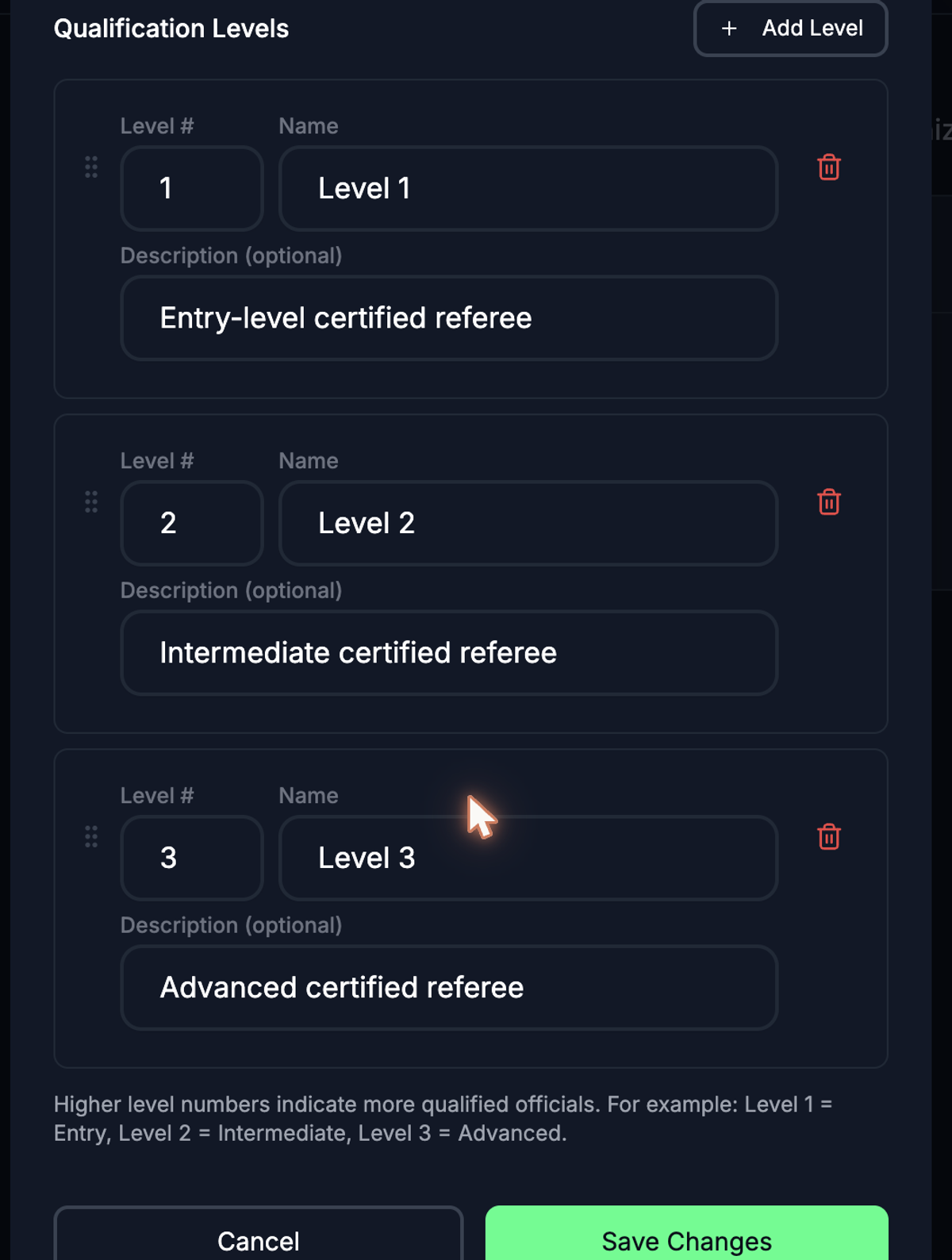
- In the position creation or edit form, click Add Level.
- A new level is added with a default number and name.
- Set the Level number. Higher numbers indicate more qualified officials. Each level must have a unique number.
- Enter a Name for the level (required). For example, "Entry," "Intermediate," or "Advanced."
- Optionally add a Description for this level.
- Repeat for each level you need.
Remove a qualification level
Click the trash icon next to any level to remove it.
Edit a Position
- Find the position in the list and click the three-dot menu on the right.
- Select Edit.
- Update the name, short name, description, or qualification levels.
- Click Save Changes.
Delete a Position
- Click the three-dot menu next to the position.
- Select Delete.
- Confirm the deletion.
Understanding the Positions List
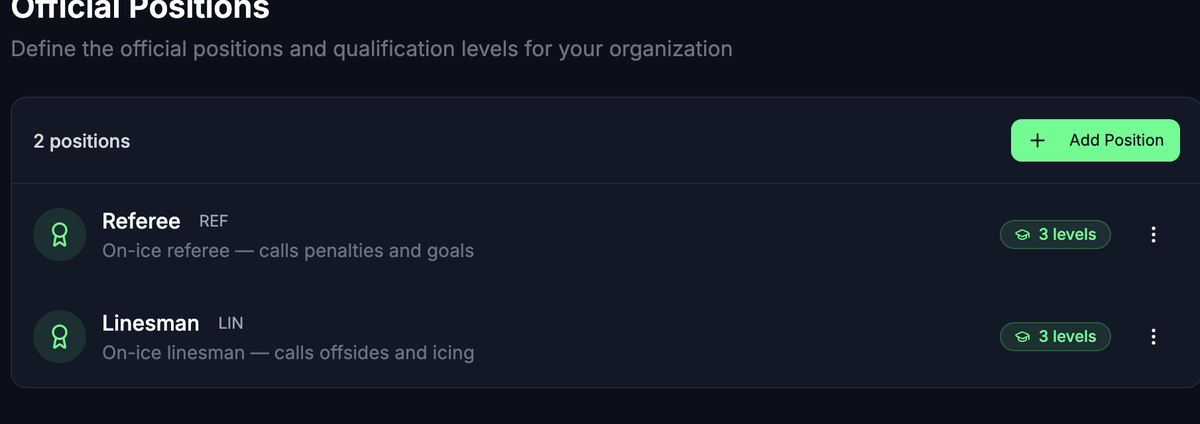
Each position in the list displays:
- The position name and short name (if set)
- A badge showing how many qualification levels are defined
- A warning badge if no qualification levels have been added
Positions with no qualification levels show an amber "No levels" warning. While you can create a position without levels, you will not be able to set meaningful minimum qualification requirements for it in your leagues and divisions.
What's Next?
- Setting Up Leagues -- Use your positions to define official requirements for each league.
- Setting Up Divisions -- Divisions can inherit or customize the requirements from their leagues.
- Managing Team Members -- Invite officials and assign them to positions.