Once you have created and published a game, the next step is making sure the right officials are assigned to the right positions. Whistle Works gives you tools to assign officials manually, let officials claim games themselves, and track each assignment through its lifecycle.
How Position Requirements Work
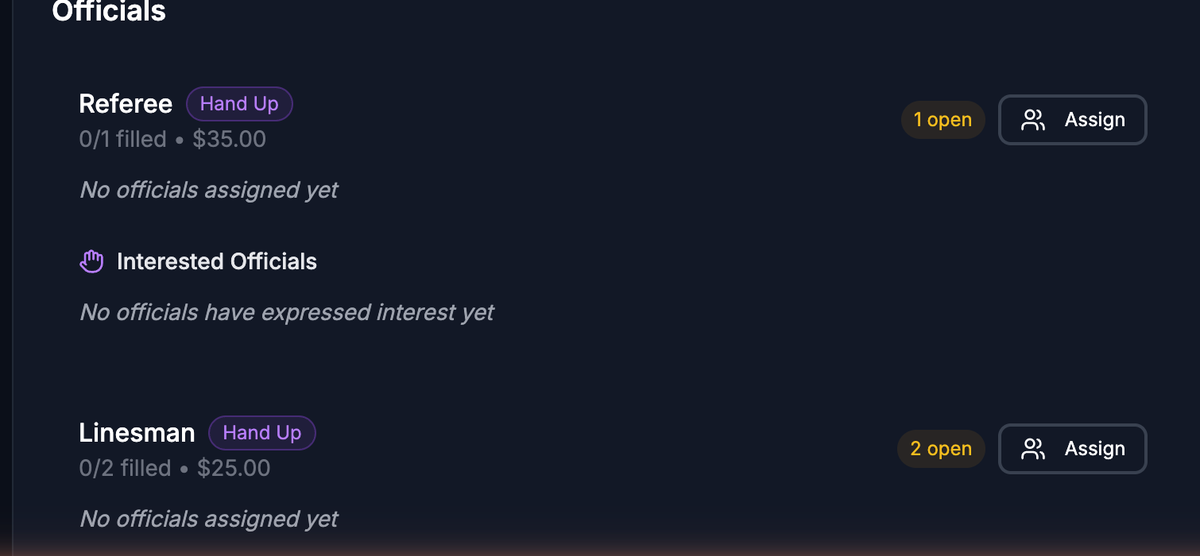
Each game has a set of position requirements that define what official roles are needed. For example, a game might require 1 Referee, 2 Linesmen, and 1 Fourth Official.
Position requirements are configured at the league or organization level and are applied to games automatically. On the game detail page, each position shows:
- Position name (for example, "Referee" or "Linesman")
- Slots filled -- A count like "1/2 filled" showing how many officials have accepted versus how many are needed
- Pay rate -- The per-game pay for that position (if configured)
- Open slots -- A badge showing how many slots are still available
Assigning an Official to a Position
- Open the game detail page.
- Scroll down to the Officials section.
- Find the position you want to fill and click the Assign button next to it. The Assign button only appears when there are open slots.
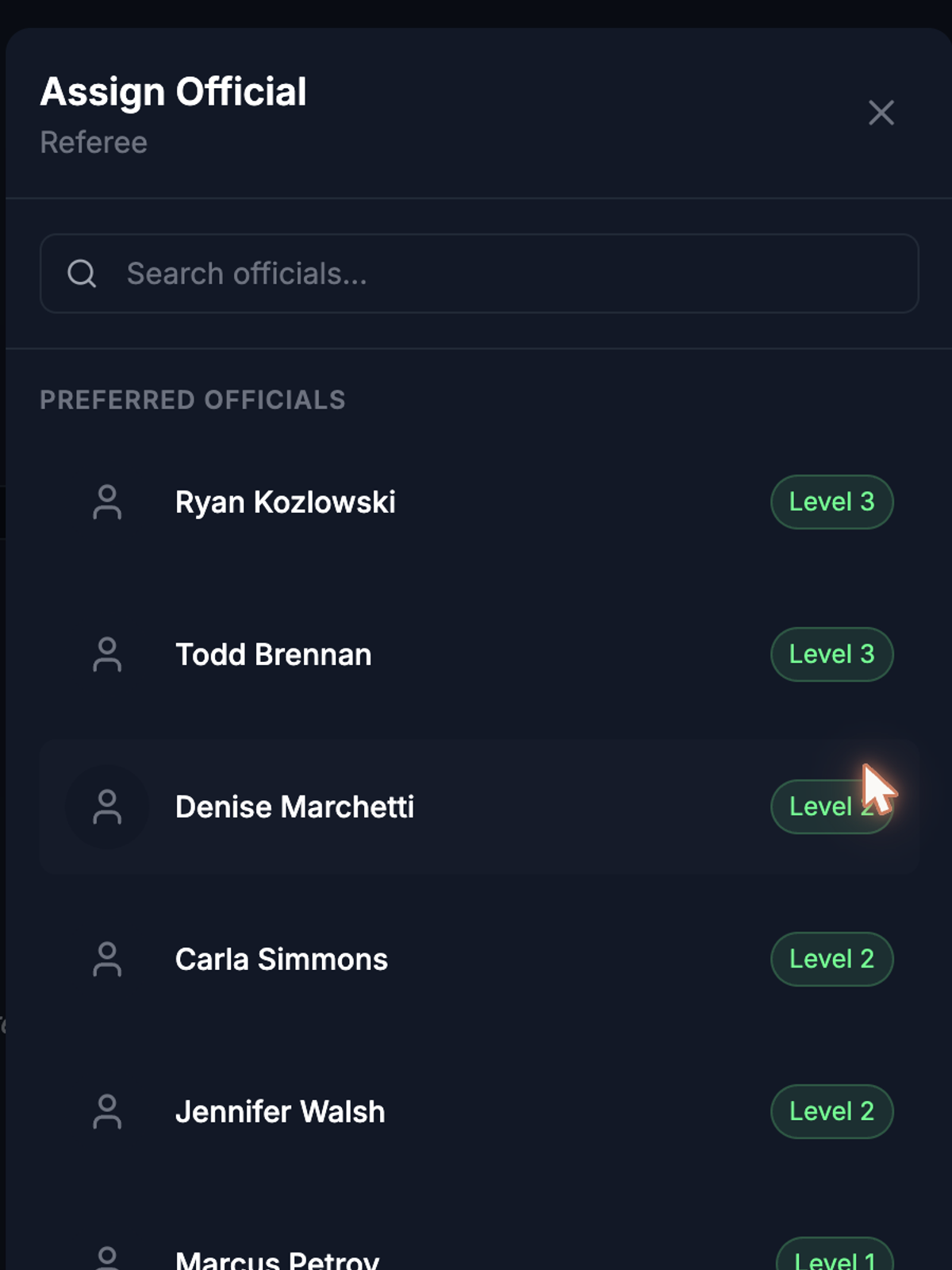
- The Assign Official picker opens, showing the position name at the top.
- Browse or search for the official you want to assign:
- Click on the official's name to assign them.
The assignment is created immediately and the page refreshes to show the updated staffing.
Understanding Assignment Statuses
Each assignment goes through a lifecycle represented by its status.
- Pending — The official has been assigned but has not yet responded. — The official can accept or decline.
- Accepted — The official has confirmed they will work this game. — The slot is considered filled. The official can withdraw if needed.
- Declined — The official has declined the assignment. — The slot is open again. You can assign a different official.
- Withdrawn — The official initially accepted but later withdrew. — The slot is open again. You can assign a replacement.
On the game detail page, each assignment displays the official's name, their level, and a status badge.
What Happens When an Official Responds
When an official accepts
- The assignment status changes to Accepted.
- The staffing count for that position updates (for example, from "0/2 filled" to "1/2 filled").
- If all positions are now filled, the game's staffing status changes to Fully Staffed.
When an official declines
- The assignment status changes to Declined.
- The slot opens up again. You can assign a different official to that position.
When an official withdraws
- The assignment status changes to Withdrawn.
- The slot opens up again.
- As an admin, you will need to find and assign a replacement.
Removing an Assignment
If you need to remove an official from a game before it is completed:
- Open the game detail page.
- In the Officials section, find the assignment you want to remove.
- Click the X button to the right of the assignment.
- Confirm when prompted.
You can remove assignments that are in Pending or Accepted status. Once a game is completed, assignments can no longer be changed.
Self-Assignment (Game Claiming)
When self-assignment is enabled on a game, officials can claim open positions themselves without waiting for an admin to assign them. This is configured per game.
How it works for officials
- Officials see available games (published games with self-assignment enabled and open slots) in their available games view.
- They can claim an open position directly.
- The assignment is created with the appropriate status.
How it works for admins
On the game detail page, the Self-Assignment panel in the sidebar shows:
- Whether self-assignment is enabled ("Officials can claim this game") or disabled ("Admin assignment only").
- The claim deadline, if one is set.
Claim Deadlines
A claim deadline is an optional cutoff date and time. After the deadline passes:
- Officials can no longer self-assign to the game.
- Only admins can make assignments.
This is useful for ensuring you have final control over staffing as game day approaches. You can set or change the claim deadline when creating or editing a game.
Viewing Staffing at a Glance
The staffing summary appears in several places to help you stay on top of assignment progress:
- Game card (in the games list) -- Shows the staffing status badge and official count (for example, "2/4 Officials").
- Game detail header -- Shows the staffing status and count next to the game status badge.
- Position breakdown (in the Officials section) -- Shows per-position filled counts (for example, "1/2 filled") and highlights open slots.
The staffing status updates automatically as officials accept, decline, or withdraw:
- Fully Staffed — All required positions have accepted officials.
- Partially Staffed — Some positions are filled, but open slots remain.
- Needs Officials — Few or no officials have accepted positions.
What's Next?
- Managing Games -- Learn how to create, edit, publish, and manage games.