The Organizations page shows every organization you belong to in Whistle Works. If you are a member of more than one organization, this is where you switch between them.
Viewing your memberships
Each organization entry displays:
- Organization name -- The name of the organization.
- Role -- Your role within that organization (for example, Official, League Admin, Super Admin, Team Manager, or Viewer).
- Status -- Active members see no extra badge. Pending members see a yellow "pending" badge, and suspended members see a "suspended" badge.
- Joined date -- When you joined the organization.
- Current indicator -- The organization you are currently working in is highlighted and labeled "Current" with a checkmark.
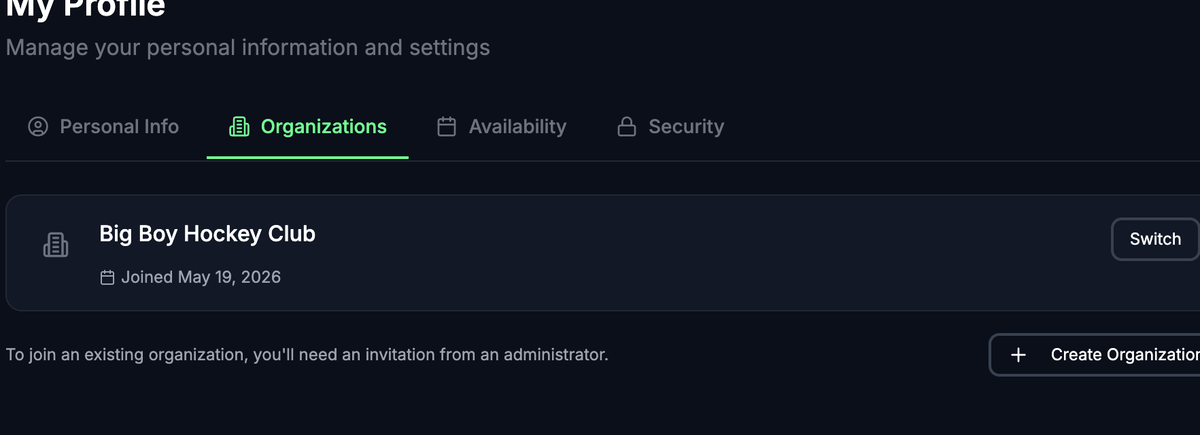
Switching organizations
If you belong to more than one active organization:
- Find the organization you want to switch to.
- Select the Switch button next to it.
- You are redirected to the dashboard for that organization.
The organization you are currently using shows an Active button (grayed out) instead of a Switch button.
tipSwitching organizations changes the context for the entire application. Your dashboard, games, assignments, and qualifications all reflect the selected organization.
Membership statuses
- Active — You have full access to the organization based on your role.
- Pending — Your membership request is awaiting approval from an administrator. You cannot access the organization until approved.
- Suspended — Your access has been temporarily revoked. Contact an organization administrator for more information.
Creating a new organization
If you want to start your own organization in Whistle Works:
- Select Create Organization at the bottom of the page (or in the center of the page if you have no memberships yet).
- Follow the prompts to set up your new organization.
Joining an existing organization
To join an organization that already exists, you need an invitation from one of its administrators. Ask the organization's admin to invite you using your email address. Depending on the organization's settings, you may be added immediately or placed in a pending state until approved.
What's next?
- Your Personal Information -- Update your name, phone, and profile picture.
- Security Settings -- Change your password.