Divisions let you organize your leagues into smaller groups -- for example, "Div A" and "Div B," or "U10," "U12," and "U18 Premier." Each division belongs to a league, and by default, it inherits that league's official requirements. You can also set custom requirements for any division.
To get here, go to Settings > Divisions in the sidebar.
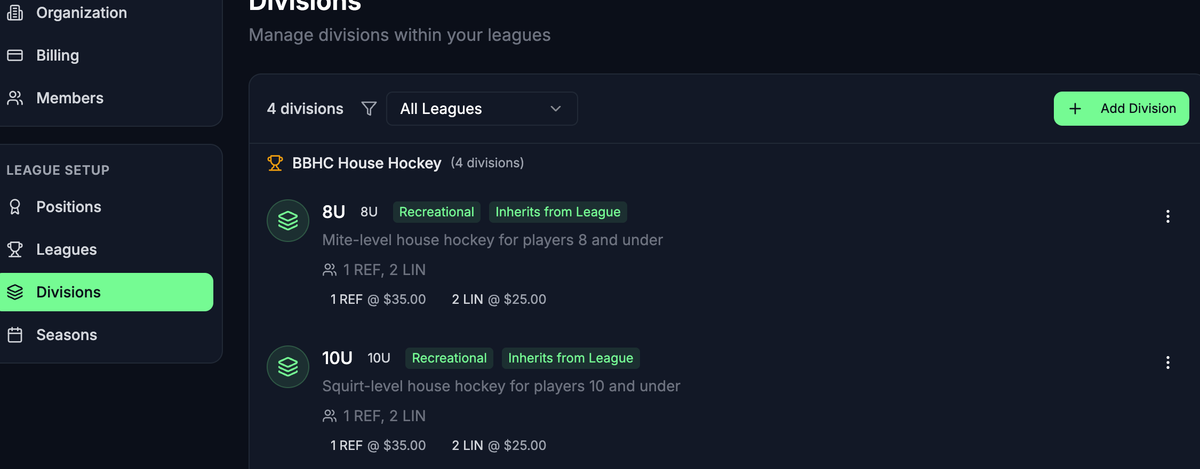
Before You Start
You need at least one league before you can create divisions. If no leagues exist, the page will prompt you to create one first. See Setting Up Leagues.
Create a Division
- Click Add Division in the top right corner.
- Select a League from the dropdown (required). If you only have one league, it is pre-selected.
- Enter a Division Name (required). For example, "Div A," "Division 1," or "U18 Premier."
- Optionally select a Level: Recreational, Competitive, or Elite. Choose "No level specified" to leave this blank.
- Optionally enter an Age Group (for example, "U10," "U12," "Adult").
- Optionally add a Description.
- Choose whether to inherit league requirements or set custom ones (see below).
- Click Create Division.
Requirements: Inherit or Customize
By default, the Inherit League Requirements toggle is on. This means the division uses whatever requirements you defined on its parent league.
To set custom requirements for a division:
- Turn off the Inherit League Requirements toggle.
- The Custom Official Requirements editor appears.
- Add requirements the same way you would for a league -- select positions, set min/max counts, pay rates, and minimum qualification levels.
When inherit is on, you will see a note confirming the division uses its league's requirements. To change those shared requirements, edit the league instead.
Filter the Divisions List
If you have many divisions across multiple leagues, use the league filter at the top of the list.
- Click the All Leagues dropdown.
- Select a specific league to show only its divisions.
- Select "All Leagues" again to see everything.
Edit a Division
- Find the division in the list and click the three-dot menu on the right.
- Select Edit.
- Update the name, level, age group, description, or requirements.
- Click Save Changes.
Sync Requirements to Games
If you change a division's requirements after games have already been created, you can push those changes to existing games.
- Click the three-dot menu next to the division.
- Select Sync to Games.
- Review and confirm.
This option only appears when the division has requirements defined (whether inherited or custom).
Delete a Division
- Click the three-dot menu next to the division.
- Select Delete.
- Confirm the deletion.
What's Next?
- Managing Seasons -- Create seasons to organize your games by time period.
- Setting Up Leagues -- Adjust league-level requirements that divisions can inherit.
- Defining Positions -- Make sure all the positions you need are in place.