Seasons let you organize games into time periods -- for example, "Fall 2024" or "Spring 2025." Each season belongs to a league and has a start date, end date, and an optional registration period that controls when officials can claim games.
To get here, go to Settings > Seasons in the sidebar.
Before You Start
You need at least one league before you can create a season. If no leagues exist, the page will prompt you to create one first. See Setting Up Leagues.
Create a Season
- Click Add Season in the top right corner.
- Select a League from the dropdown (required). If you only have one league, it is pre-selected.
- Enter a Season Name (required). For example, "Fall 2024" or "Spring 2025."
- Set the Start Date (required) and End Date (required). The end date must be after the start date.
- Optionally set a Registration Period -- the Opens and Closes dates define when officials can claim games for this season.
- Optionally add Notes about the season.
- Click Create Season.
tipThe registration period is separate from the season dates. You might open registration a few weeks before the season starts so officials have time to sign up for games.
Season Status
Each season automatically gets a status based on the current date:
- Upcoming — The season's start date is in the future.
- Active — Today falls between the start and end dates.
- Completed — The season's end date has passed.
You do not set the status manually -- it updates automatically.
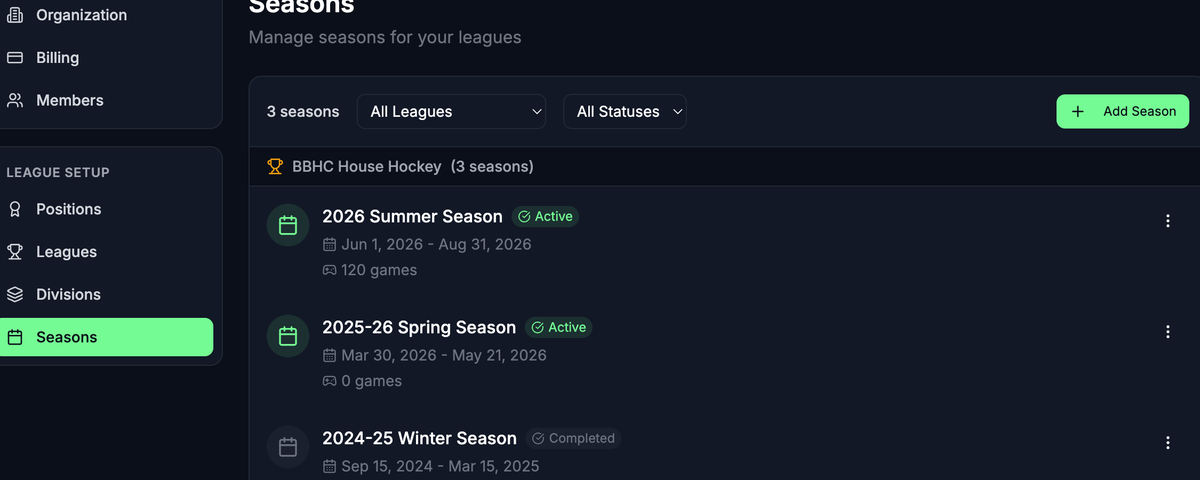
Filter the Seasons List
Use the filters at the top of the list to narrow down what you see:
- League filter -- Select a specific league to show only its seasons.
- Status filter -- Select Upcoming, Active, or Completed to see only seasons in that state.
The seasons list is grouped by league, with each league's name shown as a header.
Edit a Season
- Find the season in the list and click the three-dot menu on the right.
- Select Edit.
- Update the name, dates, registration period, or notes.
- Click Save Changes.
tipYou cannot change which league a season belongs to after it is created. If you need to move a season to a different league, delete it and create a new one.
Delete a Season
- Click the three-dot menu next to the season.
- Select Delete.
- Confirm the deletion.
What's Next?
- Setting Up Leagues -- Make sure your leagues are configured before creating seasons.
- Setting Up Divisions -- Organize your leagues into divisions.
- Managing Team Members -- Invite officials who will work your seasons.