Leagues are the top-level organizational unit in Whistle Works. Each league can have its own divisions, seasons, and official requirements. For example, you might have a "Winter League 2024" and a "Summer Season" under the same organization.
To get here, go to Settings > Leagues in the sidebar.
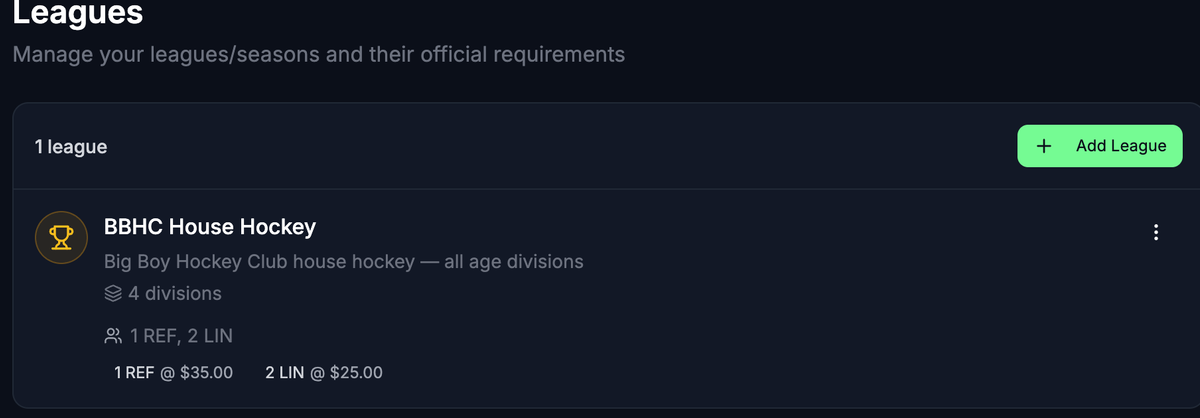
Create a League
- Click the Add League button in the top right corner.
- Enter a League Name (required). For example, "Winter League 2024" or "Summer Season."
- Optionally add a Description.
- Set up Official Requirements (see below).
- Click Create League.
Official Requirements
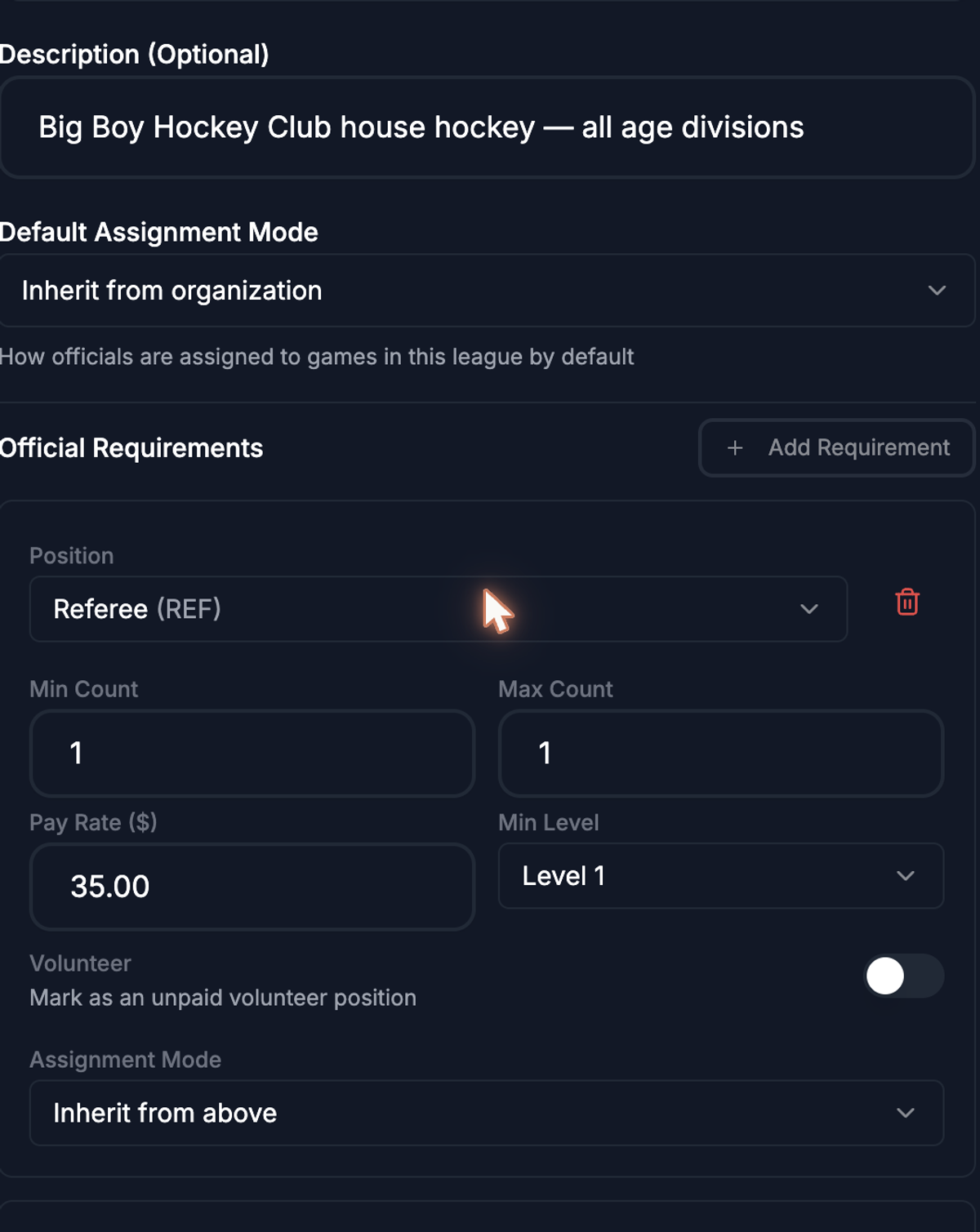
Requirements define how many officials are needed for games in this league, what positions they fill, how much they are paid, and what qualification level is needed.
Add a requirement
- In the league creation or edit form, click Add Requirement.
- Select a Position from the dropdown (for example, Referee, Linesman).
- Set the Min Count and Max Count. These define the range of how many officials in this position are needed per game. If you always need exactly 2, set both to 2.
- Enter the Pay Rate in dollars (for example, 45.00). This is the per-game pay for this position.
- Select the Min Level -- the minimum qualification level an official must have for this position. If your positions have qualification levels defined, you will see a dropdown with the level names. Otherwise, enter a number.
- Repeat for each position your league needs.
Remove a requirement
Click the trash icon next to any requirement to remove it.
Edit a League
- Find the league in the list and click the three-dot menu on the right.
- Select Edit.
- Update the name, description, or requirements as needed.
- Click Save Changes.
Sync Requirements to Games
If you change a league's requirements after games have already been created, the existing games keep their original requirements. To update them:
- Click the three-dot menu next to the league.
- Select Sync to Games.
- Review the changes and confirm.
This option only appears when the league has requirements defined.
Delete a League
- Click the three-dot menu next to the league.
- Select Delete.
- Confirm the deletion.
Deleting a league also affects all divisions within it. You will see a confirmation prompt before the deletion proceeds.
What's Next?
- Setting Up Divisions -- Create divisions within your leagues.
- Defining Positions -- Make sure your positions are set up before adding requirements.
- Managing Seasons -- Organize your games by time period.