The Venues page is where you set up and manage the locations where games are played. Each venue can have multiple playing surfaces (courts, fields, rinks, and so on) and can be linked to specific leagues and divisions.

Viewing your venues
The Venues page displays all active venues. Each venue card shows:
- Venue name
- Address (if provided)
- Surface count -- how many playing surfaces are defined (for example, "3 surfaces")
- Surface names -- listed below the address (for example, "Court 1, Court 2, Court 3")
- Contact information (phone and email, if provided)
- League and division badges showing which leagues and divisions play at this venue
- Notes (if any)
If a venue is marked inactive, it appears dimmed with an "Inactive" label.
The header shows the total number of venues.

Creating a venue
You must have a Super Admin or League Admin role to create venues.
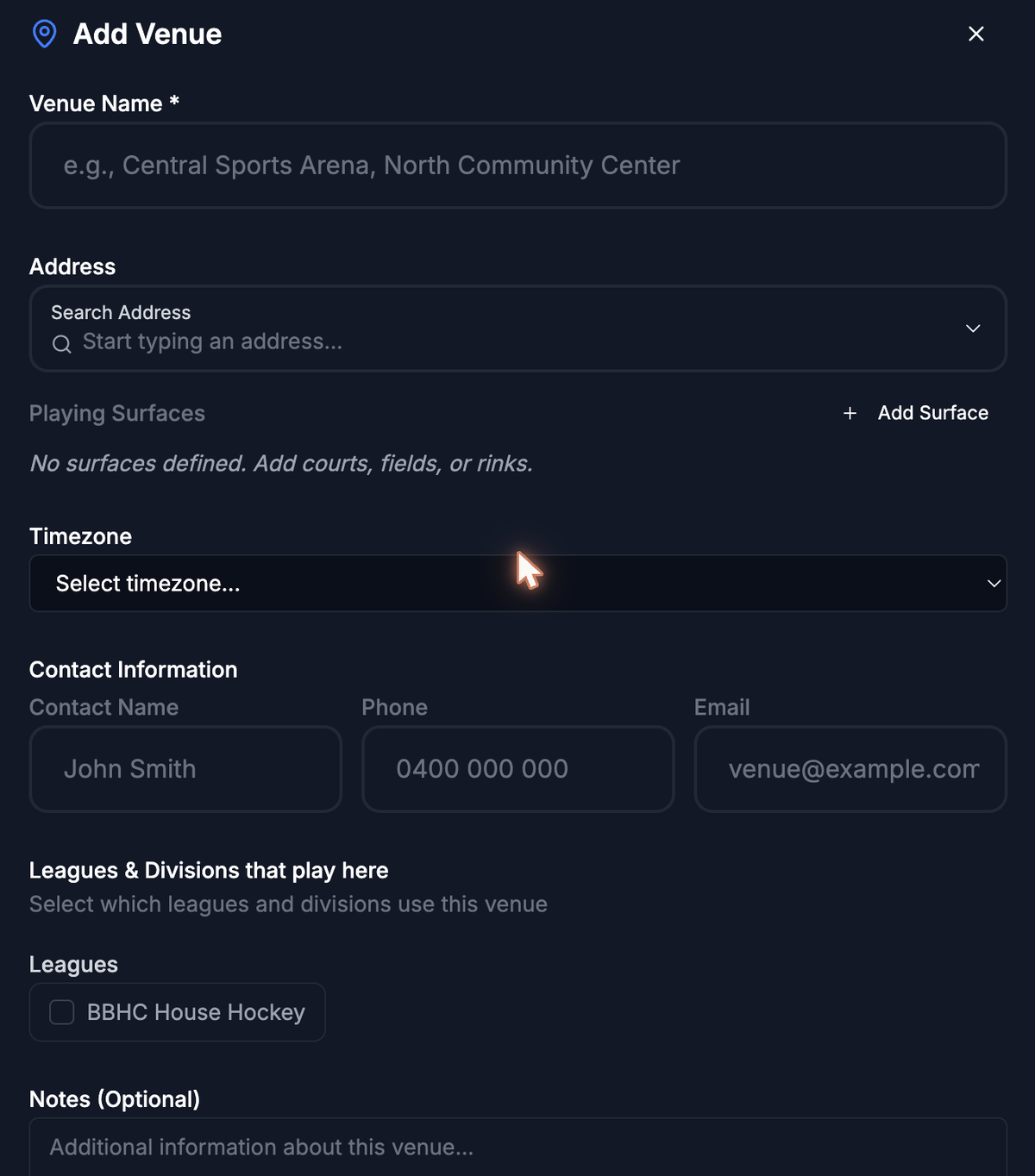
- Select the Add Venue button in the top-right corner.
- Enter the Venue Name (required). Use a name your officials will recognize, such as "Central Sports Arena" or "North Community Center."
- Add the Address:
- Add Playing Surfaces:
- Add Contact Information:
- Assign Leagues & Divisions:
- Add any Notes about the venue (parking instructions, gate codes, and so on).
- Select Create Venue.
Editing a venue
- Select the three-dot menu on the venue's row.
- Select Edit.
- Update any fields in the modal that opens. You can add or remove surfaces, change the address, and update league/division assignments.
- Select Save Changes.
All changes take effect immediately.
Deleting a venue
- Select the three-dot menu on the venue's row.
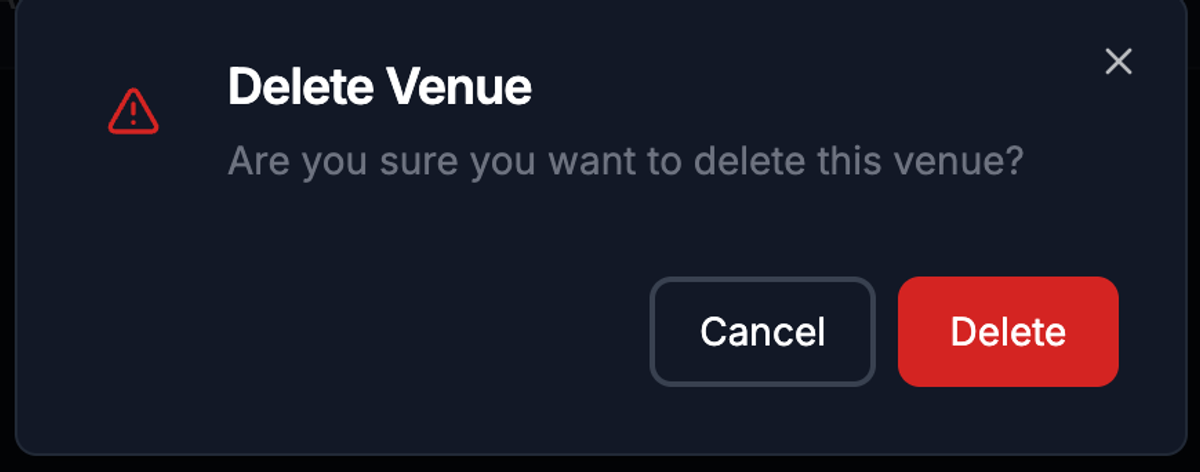
- Select Delete.
- Confirm the deletion in the dialog that appears.
Deleting a venue removes it from your organization. This action cannot be undone.
Understanding surfaces
Surfaces represent the individual playing areas within a venue. A single sports complex might have three basketball courts, or a park might have two soccer fields.
Defining surfaces lets you:
- Assign games to a specific court, field, or rink within a venue.
- Avoid scheduling conflicts where two games are booked on the same surface at the same time.
When you create a new surface, it is automatically named "Surface 1," "Surface 2," and so on. You should rename these to match what your officials and teams actually call them (for example, "Main Court," "North Field").
What's next?
- Managing Teams -- Add the teams that play at your venues.
- Managing Officials -- Manage your officiating roster and assign venue-based scope restrictions.