Whistle Works uses a sidebar for navigation on desktop and a slide-out menu on mobile. The links you see depend on your role in the current organization. This guide walks you through the main navigation areas so you can find what you need quickly.
The sidebar (desktop)
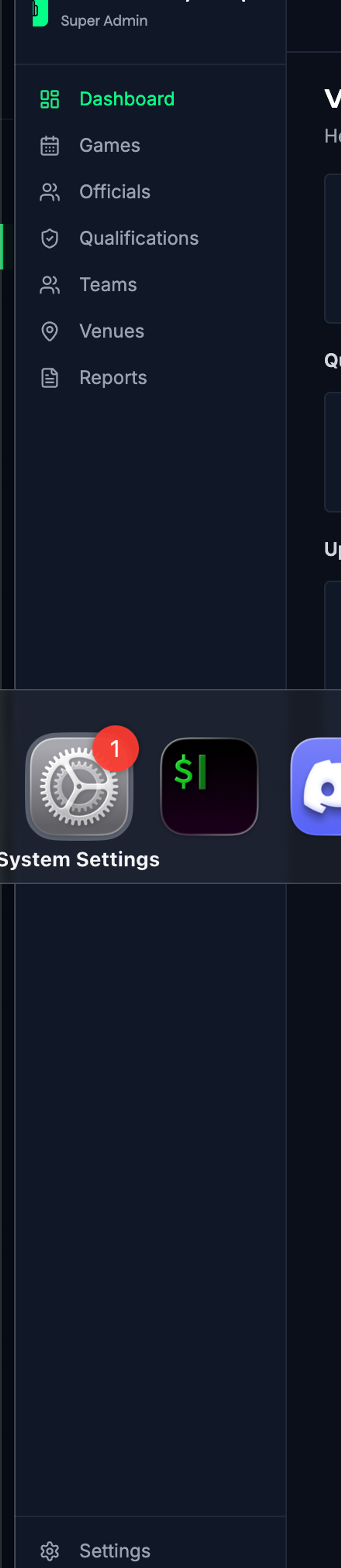
On larger screens, a sidebar is fixed on the left side of the page. It contains three sections from top to bottom: the organization switcher, the main navigation links, and the Settings link (admin only).
Administrator navigation
If you are a league administrator or super admin, the sidebar shows these links:
- Dashboard — Your home screen with stats and upcoming games
- Games — View, create, and manage all games
- Officials — See all officials, invite new ones, manage assignments
- Qualifications — Review and approve official qualification submissions
- Teams — Manage teams in your organization
- Venues — Add and edit game locations
- Reports — Access reports for your organization
- Settings — Manage organization settings, billing, and configuration
Official navigation
If you are an official, the sidebar shows:
- Dashboard — Your home screen with assignments and available games
- My Assignments — View your upcoming and past game assignments
- Available Games — Browse open games you can sign up for
- My Qualifications — View and manage your officiating qualifications
- My Profile — Edit your personal information and preferences
Active page highlighting
The current page is highlighted in green in the sidebar. This makes it easy to see where you are at a glance.
Badge notifications
Some sidebar links display a numbered badge to alert you to items that need attention:
- Qualifications (admin) — Number of pending qualification submissions to review
- Officials (admin) — Number of pending official applications to approve
- Available Games (official) — Number of games currently open for signup
Badges appear as small circles on the link. When you are on the page the badge relates to, it changes to match the active page color.
Collapsing the sidebar
You can collapse the sidebar to save screen space.
- Select the Collapse button at the very bottom of the sidebar.
- The sidebar narrows to show only icons. Hover over any icon to see a tooltip with the link name.
- Select the expand button (same position) to restore the full sidebar.
Your preference is saved automatically, so the sidebar stays collapsed or expanded the next time you log in.
Switching organizations
If you belong to more than one organization, the organization switcher appears at the top of the sidebar.
- Select your current organization name at the top of the sidebar. A dropdown menu opens listing all your organizations.
- Each organization shows its name and your role (for example, "league admin" or "official").
- Select the organization you want to switch to. The current organization is marked with a checkmark.
- The page reloads and takes you to the dashboard for the selected organization.
If you belong to only one organization, the switcher simply displays your organization name and role without a dropdown.
Mobile navigation
On phones and tablets, the sidebar is replaced by a slide-out menu.
- Tap the menu icon (three horizontal lines) in the upper-left corner of the header.
- The navigation menu slides in from the left, showing your organization switcher at the top followed by all navigation links.
- Tap any link to navigate to that page. The menu closes automatically.
- To close the menu without navigating, tap the X button in the upper-right corner of the menu, or tap anywhere outside the menu.
User menu
In the top-right corner of every page, you will find your user menu. Select your name or avatar to open a dropdown with these options:
- Profile — Edit your personal profile and contact information
- Settings — Go to organization settings (same as the sidebar link)
- Sign out — Log out of Whistle Works
The menu also displays your name and email address for quick reference.
What's next?
- Setting Up Your Organization -- Walk through the initial setup if you have not completed it yet.
- Dashboard Overview -- Learn about each section of your dashboard.