Games are the core of Whistle Works. As an admin, you can schedule games, assign official requirements, publish them so officials can see and claim them, and track each game through to completion.
This guide walks you through every step of working with games.
Viewing Your Games
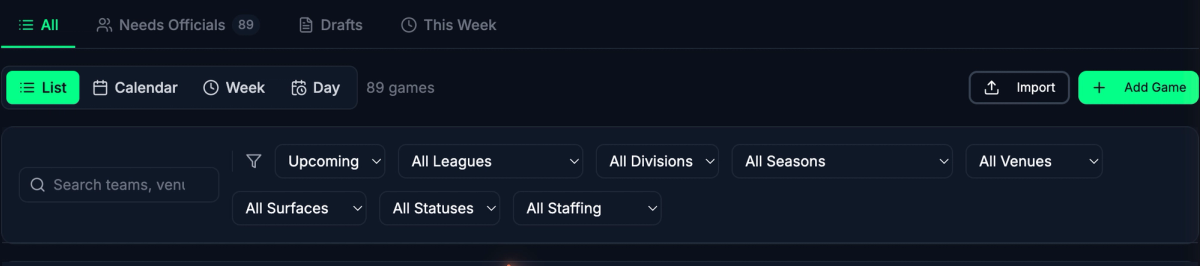
When you open the Games page, you see your upcoming games grouped by date. You can switch between four views using the icons at the top of the page:
- List -- Games grouped by date, showing time, teams, venue, and staffing status.
- Calendar -- A monthly calendar with games shown on their scheduled dates.
- Week -- A weekly timeline view.
- Day -- A single-day detailed view.
Filtering and Searching
Use the quick-filter tabs at the top to narrow down your games:
- All — Every game matching your other filters
- Needs Officials — Upcoming games that are not fully staffed
- Drafts — Games still in Draft status
- This Week — Games scheduled in the next 7 days
You can also filter by league, division, season, venue, surface, game status, staffing status, and date range (upcoming, past, or all). Use the search bar to find games by team name, venue, league, or notes.
Creating a New Game
- From the Games page, click the Schedule Game button (or press N on your keyboard).
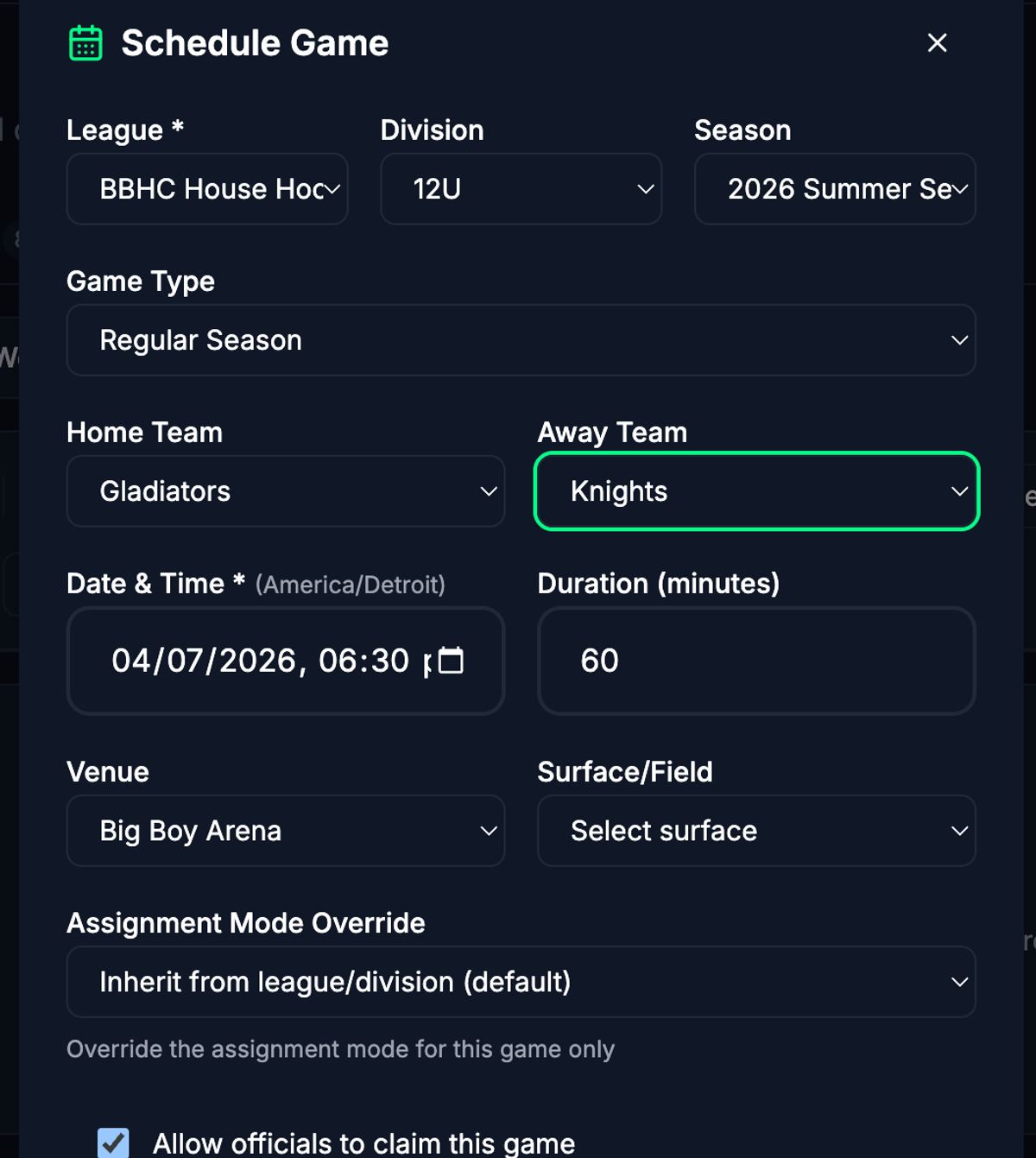
- Fill in the game form:
- League — Yes — Select the league this game belongs to. Changing the league clears the division, season, and team selections.
- Division — No — Optionally narrow the game to a specific division within the league.
- Season — No — Optionally associate the game with a season.
- Game Type — No — Choose from: Regular Season, Playoff, Tournament, Exhibition, or Scrimmage. Defaults to Regular Season.
- Home Team — No — Select the home team. Only teams in the selected league appear.
- Away Team — No — Select the away team. Only teams in the selected league appear.
- Date & Time — Yes — The scheduled start date and time for the game.
- Duration — No — Length of the game in minutes (15--300). Defaults to 60 minutes.
- Venue — No — Where the game will be played.
- Surface/Field — No — If the selected venue has multiple surfaces or fields, choose one here.
- Allow officials to claim this game — No — When checked, officials can self-assign to open positions. Enabled by default. See Self-Assignment Settings below.
- Claim Deadline — No — If self-assignment is enabled, you can set a deadline after which only admins can assign officials.
- Notes — No — Any additional information about the game (special instructions, parking info, etc.).
- Click Create Game.
The game is created in Draft status. It is not yet visible to officials.
Editing an Existing Game
- Open the game you want to edit by clicking on it from the games list.
- In the Actions panel on the right side, click Edit Game.
- Make your changes in the form that appears. All fields except League can be modified.
- Click Save Changes.
You can also edit a game directly from the games list by clicking the three-dot menu on a game card and selecting Edit.
Duplicating a Game
- From the games list, click the three-dot menu on the game you want to copy.
- Select Duplicate.
- The game form opens pre-filled with the original game's league, division, season, game type, teams, venue, surface, self-assignment settings, and notes.
- Set the Date & Time for the new game (this field is intentionally left blank).
- Set a Claim Deadline if needed.
- Click Create Game.
Understanding Game Statuses
Every game has a status that controls its visibility and what actions are available.
- Draft — The game has been created but is not yet published. You can still make changes freely. — No
- Published — The game is live and visible to officials. Officials can accept assignments or claim open positions (if self-assignment is enabled). — Yes
- Completed — The game has been played and finalized. No further assignment changes can be made. — Yes (read-only)
- Cancelled — The game has been cancelled. A cancellation reason is recorded and displayed. — Yes (read-only)
Publishing a Game
Publishing makes a game visible to officials in your organization.
- Open the game detail page for a Draft game.
- Click the Publish button in the top-right corner.
- Confirm when prompted.
You can also bulk-publish multiple draft games at once:
- From the games list, select the checkboxes next to the draft games you want to publish.
- A bulk actions bar appears. Click Publish.
- Confirm when prompted. Only games in Draft status will be published; others are skipped.
Completing a Game
After a game has been played:
- Open the game detail page for a Published game.
- Click the Complete button.
- Confirm when prompted.
Completing a game finalizes the record. Assignments can no longer be changed.
Cancelling a Game
If a game needs to be cancelled:
- Open the game detail page.
- Click the Cancel button.
- Enter a reason for the cancellation when prompted and confirm.
The cancellation reason is displayed on the game detail page for reference.
Understanding Staffing Status
Each game displays a staffing indicator that shows how many officials have accepted assignments relative to the total positions required.
- Fully Staffed — All required positions have been accepted by officials.
- Partially Staffed — Some positions are filled, but open slots remain.
- Needs Officials — No officials have accepted positions yet, or very few have.
The staffing count is displayed as a ratio (for example, "2/4 Officials") so you can see at a glance how many positions are filled versus how many are needed.

Self-Assignment Settings
Self-assignment (also called "game claiming") lets officials assign themselves to open positions on a game without waiting for an admin to make the assignment.
When creating or editing a game, you control this with two settings:
- Allow officials to claim this game -- Check this box to let officials self-assign. When unchecked, only admins can assign officials.
- Claim Deadline -- Optionally set a date and time after which self-assignment is no longer available. After the deadline passes, only admins can assign officials. This is useful for locking down assignments as game day approaches.
On the game detail page, the Self-Assignment panel in the sidebar shows the current setting and claim deadline (if any).
Importing a Schedule
If you have a large number of games to schedule, you can import them in bulk using the Import feature on the Games page. Click the Import button to open the import tool.
Game Detail Page
Clicking on any game opens its detail page, which shows:
- Game Details -- Date, time, duration, venue (with surface), league, division, season, and game type.
- Notes -- Any notes added to the game.
- Officials -- All position requirements and their current assignments. See Assigning Officials to Games for details.
- Actions (sidebar) -- Edit the game.
- Self-Assignment (sidebar) -- Whether officials can claim the game and the claim deadline.
- Information (sidebar) -- Who created the game, when it was created, and key dates (published, completed).
What's Next?
- Assigning Officials to Games -- Learn how to assign officials to game positions and manage assignment statuses.