The Officials page is where you manage everyone who officiates games for your organization. You can view your full roster, invite new officials, approve join requests, manage qualifications, and control which games each official can be assigned to.
Viewing your officials
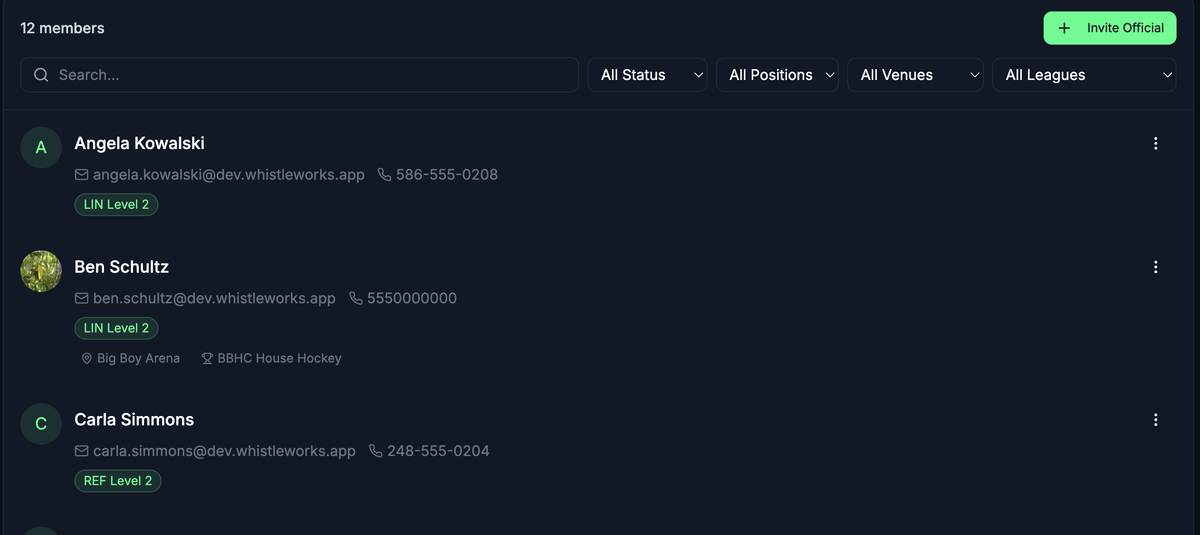
When you open the Officials page, you see a list of all active officials in your organization. Each card shows:
- Name and avatar
- Email address and phone number (if provided)
- Qualification badges for each position they are certified to officiate
- Scope tags showing any venue, league, or division restrictions
The header displays the total member count. If there are pending join requests, a count of those appears as well.
Tabs
The Officials page has two tabs at the top:
- Officials -- your roster of officials and pending invitations (covered on this page).
- Availability -- a calendar view of official availability across your organization.
Searching and filtering
Use the controls in the header bar to narrow down the list:
- Search -- type a name or email address in the search box to filter the list in real time.
- Status -- use the status dropdown to show:
- Position -- filter by a specific officiating position (for example, "Referee" or "Umpire"). Only officials who hold a qualification for that position will appear.
- Venue -- filter by venue. Officials with no venue restrictions (meaning they can work anywhere) will also appear.
- League -- filter by league. Officials with no league restrictions will also appear.
To clear all filters at once, select the Clear filters button that appears when no results match.

Inviting a new official
You must have a Super Admin or League Admin role to invite officials.
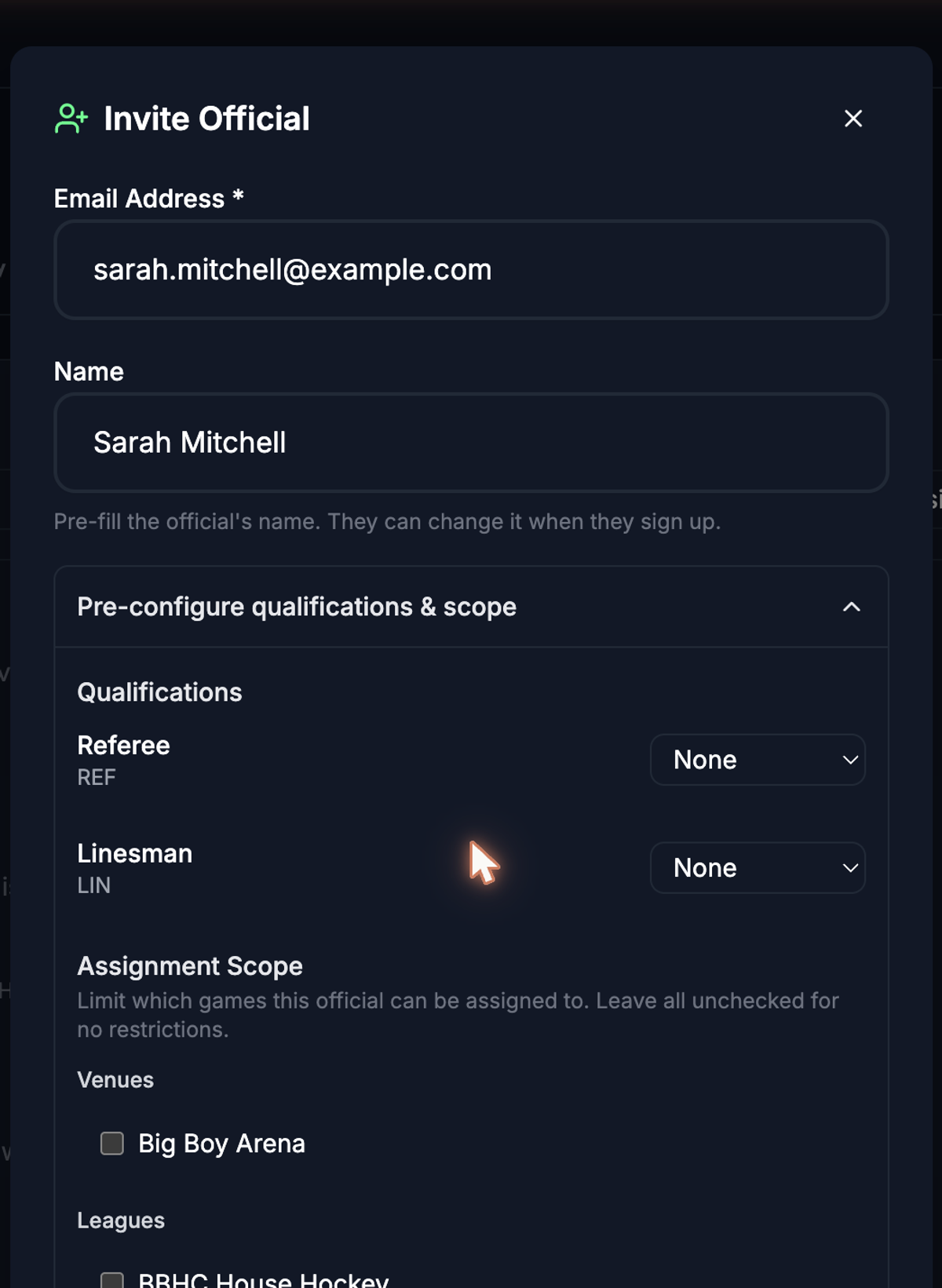
- Select the Invite Official button in the top-right corner of the list.
- Enter the person's Email Address. This is the only required field.
- Optionally enter a Name. This pre-fills their profile when they sign up, but they can change it.
- To pre-configure qualifications and assignment scope before they join, expand the Pre-configure qualifications & scope section:
- Select Send Invitation.
The official receives an email invitation. They appear in the "Pending Invitations" section of the list until they accept.
Pending invitations
Pending invitations appear in a highlighted section near the top of the list. Each invitation shows:
- The email address the invitation was sent to
- Who sent the invitation
To cancel a pending invitation, select Cancel next to it. The person will no longer be able to use the invitation link.
Approving join requests
When your organization requires approval for new members, people who request to join appear in the Pending Approval section at the top of the list.
Each request shows the person's name, email, and requested role.
- Select Approve to add them to your organization.
- Select the X button to deny the request. Denying a request cannot be undone.
Editing qualifications and scope
To change an official's qualifications or assignment scope:
- Select the three-dot menu on the official's row.
- Select Edit Qualifications.
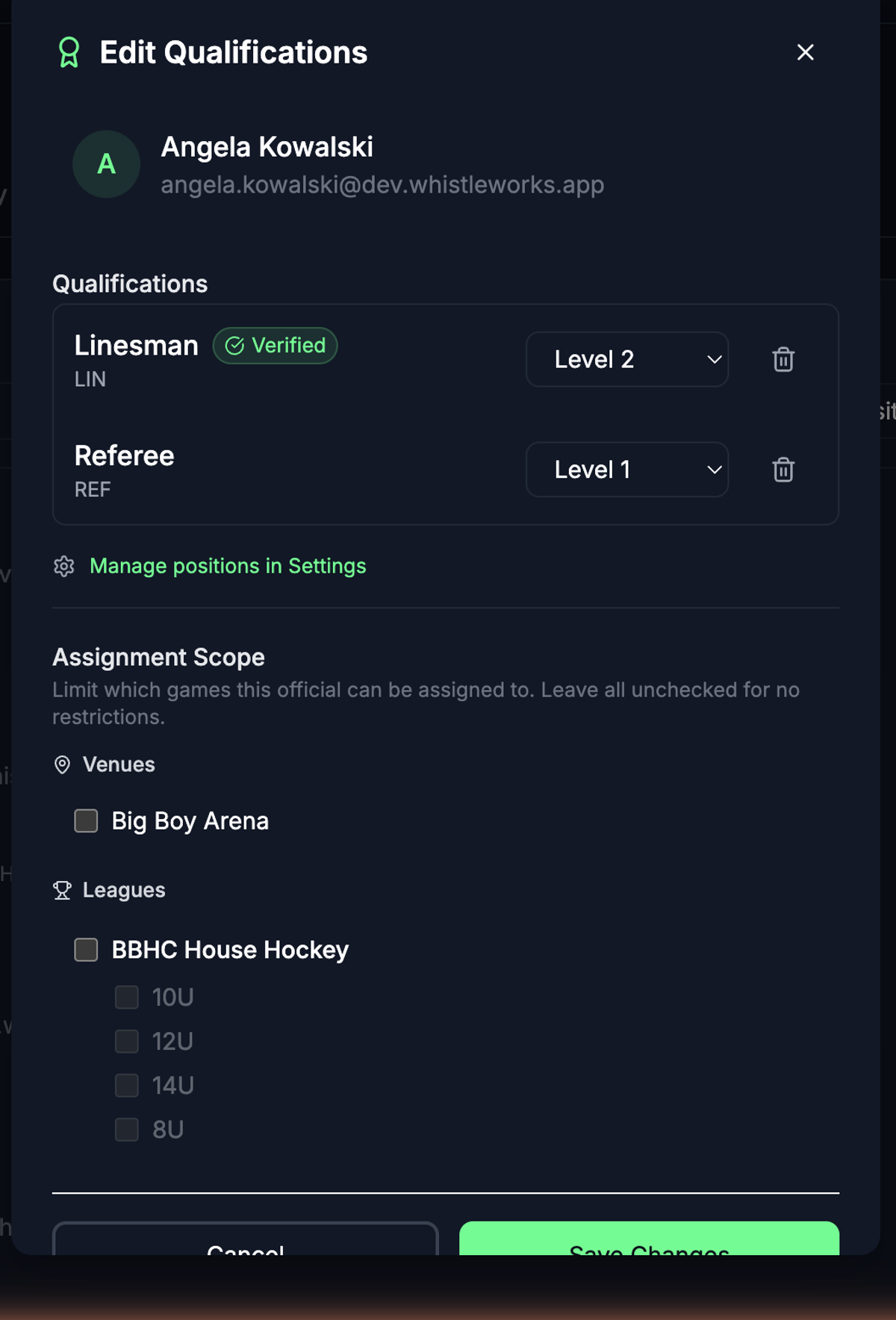
- In the modal that opens, you can:
- Scroll down to the Assignment Scope section to update venue, league, and division restrictions.
- Select Save Changes.
Viewing an official's availability
To see when an official is available:
- Select the three-dot menu on the official's row.
- Select Availability.
- A modal opens showing the official's availability details, including any blackout dates they have set.
Removing an official
To remove an official from your organization:
- Select the three-dot menu on the official's row.
- Select Remove.
- Confirm the removal in the dialog that appears.
Removing an official takes effect immediately. They will no longer appear in your roster or be available for game assignments.
What's next?
- Managing Qualifications -- Review the qualification queue and approve certification requests across your organization.
- Managing Venues -- Set up the locations where your games are played.
- Managing Teams -- Add the teams that participate in your leagues.