The Qualifications page gives you a centralized view of every qualification in your organization. You can review new requests from officials, approve or reject them, and handle upgrade requests -- all from one place.
Understanding the qualification workflow
When an official submits a qualification (either during sign-up or from their profile), it enters a Pending state. An admin reviews the submission, checks any supporting certification details, and either verifies or rejects it.
Once verified, an official can later request an upgrade to a higher level. Upgrade requests appear separately so you can review them without losing track of the official's current verified level.
Qualification statuses:
- Pending — A new qualification request waiting for admin review.
- Verified — Approved by an admin. The official can be assigned to games at this level.
- Rejected — Denied by an admin. The rejection reason (if provided) is visible to the official.
- Upgrade Requested — The official holds a verified qualification and is requesting a higher level.
Filtering the list
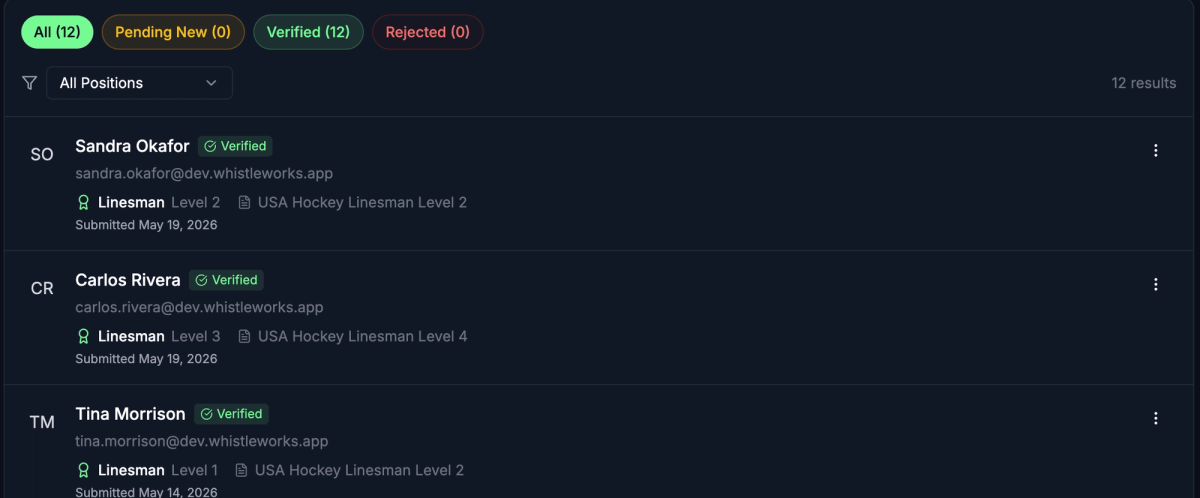
Use the status tabs and position filter at the top of the page to focus on what needs your attention.
Status tabs
Select a tab to filter by status:
- All -- every qualification in the system.
- Pending New -- new qualification requests waiting for review. This is usually where you start.
- Upgrades -- officials who already have a verified qualification and are requesting a higher level. This tab only appears when upgrade requests exist.
- Verified -- qualifications that have been approved.
- Rejected -- qualifications that have been denied.
Each tab shows a count so you can see at a glance how many items need attention.
Position filter
Use the Position dropdown to show only qualifications for a specific position (for example, "Referee" or "Linesperson").

Reviewing a new qualification
Each entry in the list shows:
- The official's name and email
- The position and requested level
- External certification details (certificate name, number, and issuing body), if the official provided them
- The date the request was submitted
Quick verify or reject
For straightforward requests:
- Select the Verify button on the right side of the entry.
- Confirm in the dialog that appears.
To reject instead:
- Select the Reject button.
- Confirm the rejection.
Viewing full details
For requests that need closer inspection:
- Select the three-dot menu on the right side of the entry.
- Select View Details.
- A detail modal opens where you can review all certification information and take action.
Handling upgrade requests
When an official requests an upgrade, their existing qualification row shows a highlighted upgrade banner with:
- The current level and the requested new level
- Any updated certification details submitted with the upgrade
- The date the upgrade was requested
To act on an upgrade:
- Select Approve to promote the official to the requested level. Their qualification immediately updates.
- Select Reject to deny the upgrade. The official keeps their current level.
Editing a verified or rejected qualification
To review or make changes to an existing qualification:
- Select the three-dot menu on the entry.
- Select View / Edit.
- The detail modal opens where you can adjust the level or update the status.
What each entry displays
Depending on the status, you may see additional details on each entry:
- Verified qualifications show who verified them and when.
- Rejected qualifications show the rejection reason, if one was provided.
- All qualifications show the date they were originally submitted.
What's next?
- Managing Officials -- View your roster and manage individual official profiles and scope.
- Setting Up Your Organization -- Review the initial setup steps if you are just getting started.